Router Config Checklist
Symptom: Devices on the same Wi-Fi network can’t communicate, Bonjour discovery fails, or connectivity is intermittent. Root Cause: Router misconfiguration — one or more settings are preventing proper device-to-device communication. Referred from: DIT Triage - iPad Disconnected, DIT Triage - Network Setup
Diagnosis
Work through the Pre-Shoot Configuration Checklist below. Any unchecked item is a potential root cause.
Pre-Shoot Configuration Checklist
Run through this checklist when setting up the DIT router. Open the router admin panel and verify each setting — do not check from memory. Firmware updates and power loss can silently reset settings between shoots.
Band Selection
- Enable the 5 GHz band and set it as preferred. 5 GHz has less interference from production equipment (2.4 GHz wireless triggers, walkies, Bluetooth). Enable both bands with “prefer 5 GHz” if available. Only use “5 GHz only” if you have confirmed every iPad on set supports 5 GHz — older iPads (iPad Air 1st gen, iPad mini 2) do not, and they will silently fail to connect with no error message.
- Keep 2.4 GHz enabled as fallback. Use 2.4 GHz if 5 GHz range is insufficient (5 GHz has shorter range) or if any device on set requires it.
Isolation Settings (CRITICAL)
- Disable AP Isolation (confirm it is OFF). This is the #1 cause of “devices can connect to Wi-Fi but can’t see each other.” AP Isolation prevents all device-to-device traffic. Some routers enable it by default. Open the router admin panel, navigate to the AP Isolation setting, and verify it is OFF.
- Disable Client Isolation (confirm it is OFF). Same effect as AP Isolation — some router brands use this name instead. Check both if your router lists both.
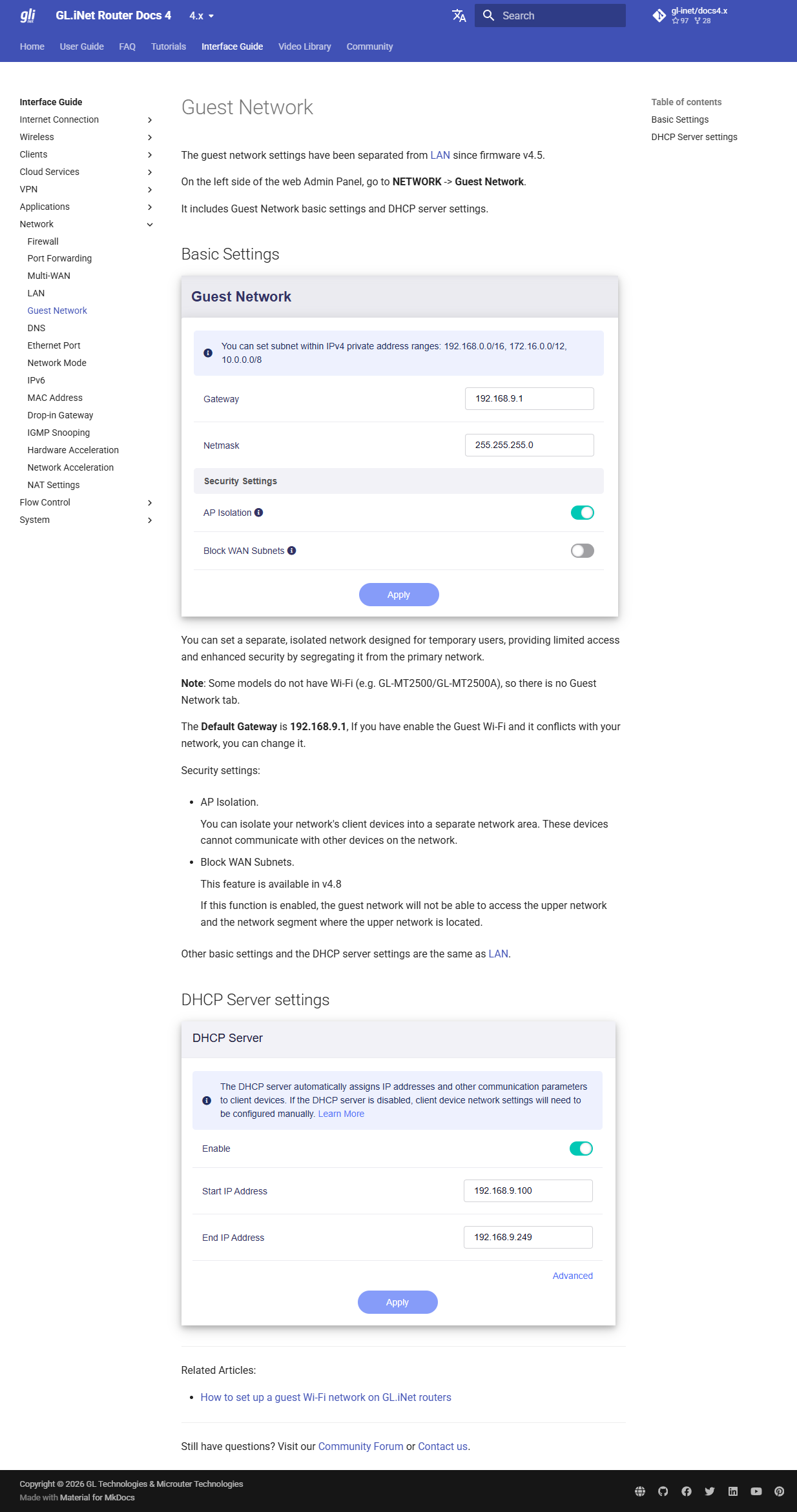
- Confirm DIT devices are on the main network, NOT the guest network. Guest networks typically force AP Isolation on and cannot be changed. If unsure which network you’re on, check the SSID name — GL.iNet appends “-Guest” to guest network names.
Band Steering
- Band steering: OFF or “prefer 5 GHz.” Band steering auto-assigns devices to 2.4 or 5 GHz. If it puts the iPad on 2.4 and the laptop on 5, they may be on effectively different networks. If you must use band steering, ensure all DIT devices end up on the same band. Safest: turn it off and manually connect all devices to 5 GHz.
DHCP
- DHCP lease time: 24 hours. Default lease on many travel routers is 2 hours. When the lease expires, the device must renew — this can cause a brief connectivity drop and possible IP reassignment. Set to 24 hours to prevent mid-shoot drops.
- Static IP reservations (recommended):
- Laptop (Ethernet): 192.168.8.10
- Laptop (Wi-Fi): 192.168.8.11
- iPad 1: 192.168.8.20
- iPad 2: 192.168.8.21
- iPad 3: 192.168.8.22
- (Adjust subnet to match your router’s default: 192.168.8.x for GL.iNet, 192.168.0.x for TP-Link, etc.)
Bonjour/mDNS
- mDNS/Bonjour passthrough: Enabled. Some routers filter multicast traffic by default. Capture Pilot relies on Bonjour (mDNS multicast) for service discovery. Check the router’s “Multicast” or “mDNS” settings.
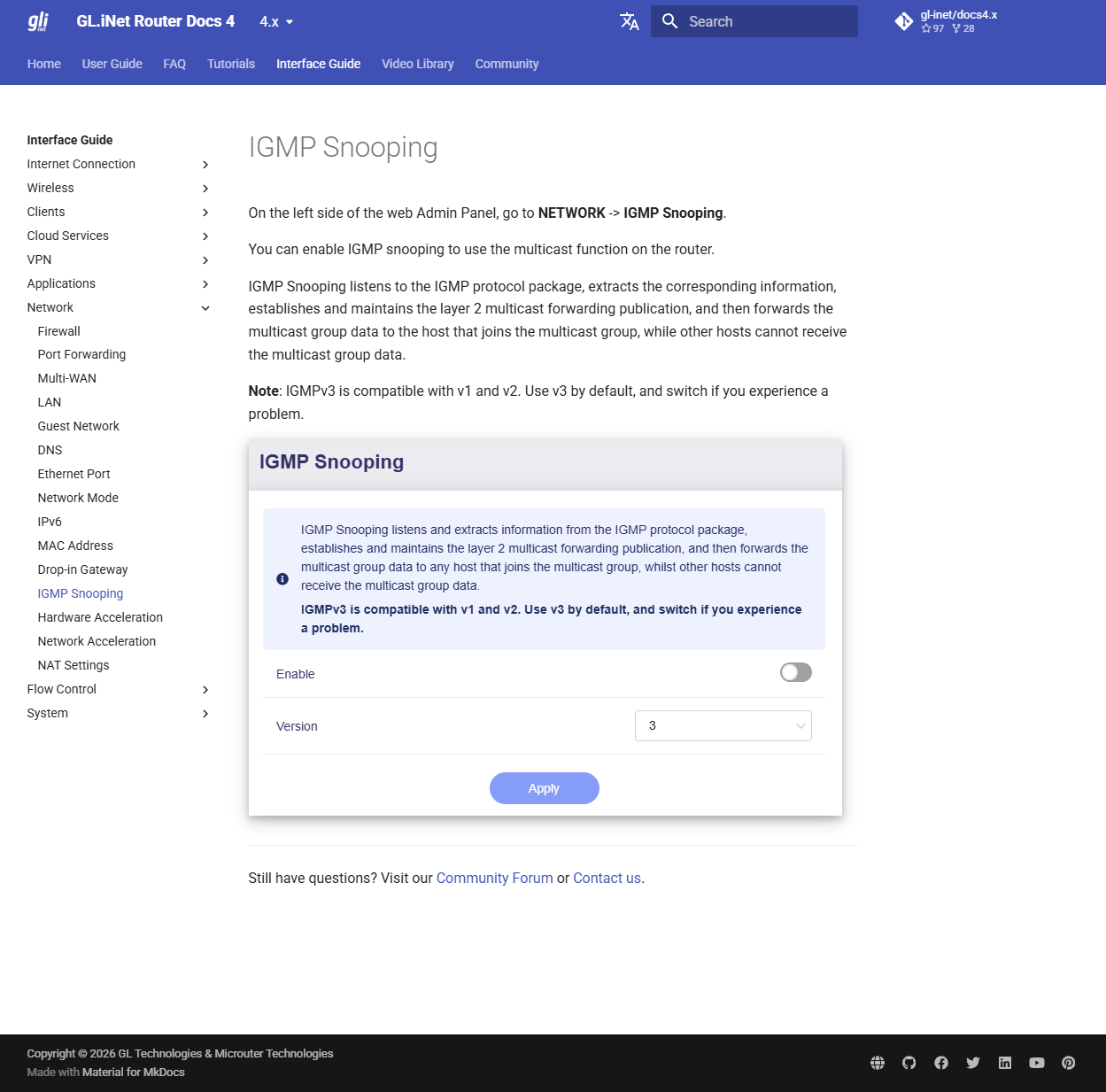
- Disable IGMP snooping. IGMP snooping can inadvertently block Bonjour on a small DIT network. Safest to disable it entirely. (Advanced: if you need it on for other reasons, configure it to pass mDNS — but if you’re not sure, just disable it.)
- UPnP: Enabled if available. Helps with automatic port mapping.
Other
- SSID broadcast: ON. Hiding the SSID doesn’t improve security and makes it harder to connect devices on set.
- Wi-Fi password: Set and known. Write it on gaffer tape attached to the router. Share with the DIT only, not the entire crew.
- Channel selection: Auto or manually selected clear channel. On crowded sets, use a Wi-Fi analyzer app (WiFi Analyzer on Android, or Network Analyzer on iOS) to find the least congested channel.
Router-Specific Notes
GL.iNet (Beryl, Slate, Mango)
- Admin panel: connect to the router’s Wi-Fi, then navigate to
192.168.8.1in a browser. Default password is on the sticker on the bottom of the router (or “goodlife” on older models). - Which firmware version do you have? v4 has a dark sidebar with icons on the left. v3 has a light blue header with text tabs across the top. Or check the bottom of the admin page for a version number starting with 3.x or 4.x.
- Factory reset: Hold the physical reset button on the router for 10+ seconds until the LEDs flash. This restores default credentials and all settings. Use this if you inherit a router with unknown admin credentials.
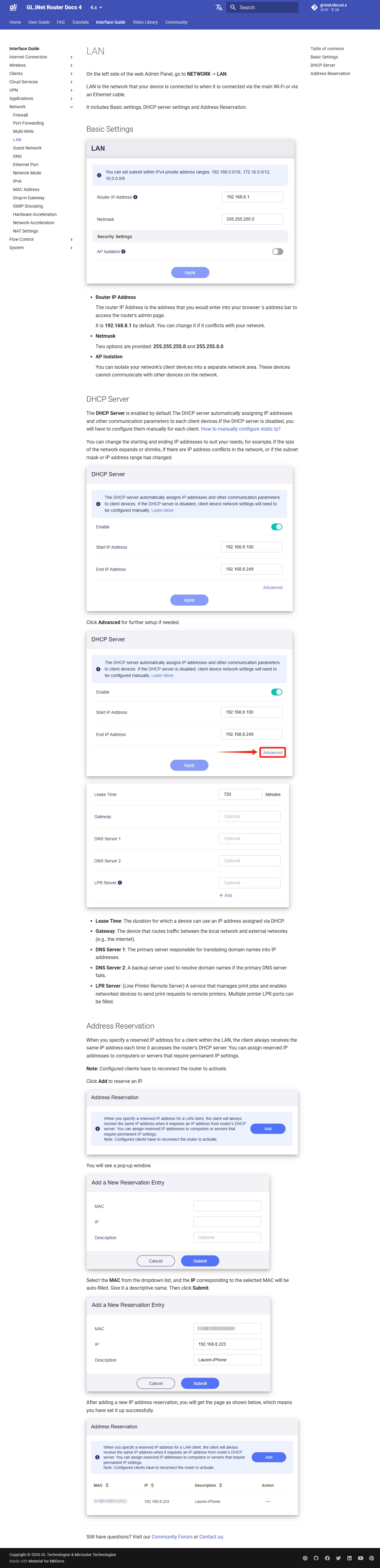
- AP Isolation (v4 firmware): found under NETWORK > LAN > Basic Settings > AP Isolation for the main network, and also under NETWORK > Guest Network for guest Wi-Fi. Ensure AP Isolation is OFF on the main LAN. → Official doc
- AP Isolation (v3 firmware): found under “Wireless” > “Modify” > uncheck “AP Isolation”
- DHCP Lease Time (v4 firmware): under NETWORK > LAN > DHCP Server > Advanced > Lease Time. Set to 24 hours. → Official doc
- Static IP Reservations (v4 firmware): under NETWORK > LAN > Address Reservation > Add. Select MAC from dropdown, IP auto-fills. → Official doc
- IGMP Snooping: under NETWORK > IGMP Snooping. Disable for DIT use, or leave at default (v3) which generally passes mDNS. → Official doc
- Guest network: under NETWORK > Guest Network (v4) or “Wireless” > “Guest” (v3). Do NOT use for DIT devices — AP isolation is on by default. → Official doc
- Wireless settings: band selection, SSID, channel. → Official doc
GL.iNet admin panel screenshots (v4 firmware)
LAN Settings — AP Isolation, DHCP Lease Time, Static IP Reservations:
IGMP Snooping:
Guest Network — AP Isolation for guest Wi-Fi:
Wireless Settings — Band selection, SSID, channel:

- Firmware: update to the latest stable firmware. Some GL.iNet firmware versions have memory leaks that cause crashes after 4-6 hours of continuous use. Reboot the router during lunch breaks as a preventive measure.
TP-Link (Travel routers)
- Admin panel:
192.168.0.1ortplinkwifi.net. Default password is on the sticker on the bottom of the router. - Factory reset: Hold the physical reset button for 10+ seconds until the LED blinks. Restores default credentials and settings.
- AP Isolation: under “Wireless” > “Wireless Settings” > uncheck “Enable AP Isolation”
- mDNS: TP-Link travel routers generally pass mDNS by default. If Bonjour isn’t working, check for a “Multicast” setting under “Network” or “Advanced.”
- Band steering: under “Wireless” > “Smart Connect” — disable if causing issues
Fix
Devices Still Can’t Communicate After Checking Everything
- Power cycle the router (unplug, wait 10 seconds, replug)
- Before this step: confirm you have the Wi-Fi password (check the gaffer tape on the router or the router admin panel). Then forget the network on ALL devices and reconnect. If you forget the network without the password, connect to the router via Ethernet to access the admin panel and retrieve it.
- Verify all devices are on the same band (all on 5 GHz or all on 2.4 GHz)
- Check that no device has a VPN active (VPNs can route traffic outside the local network)
- Check that macOS Firewall is allowing Capture One connections
- Try disabling the router’s firewall temporarily (some routers have an internal firewall that can block local traffic)
Prevention
- Run the full checklist above before every shoot, not just the first time — firmware updates and power loss can reset settings
- Save the router configuration as a profile/backup (GL.iNet and TP-Link both support config export) so you can restore known-good settings instantly
- Label the router with the SSID and password on gaffer tape
- Write the laptop IP and Capture One port on a Post-it at the DIT station — if Bonjour fails mid-shoot, you can reconnect an iPad in 10 seconds using these values
- Keep the router in shade with airflow — direct sunlight on outdoor shoots can cause thermal shutdown (the router stops broadcasting but the power LED stays on, mimicking a firmware crash)
- Reboot GL.iNet routers during lunch breaks to avoid memory leak crashes on longer shoot days
Documentation
GL.iNet
- GL.iNet Router Docs (v4 firmware) — main documentation portal
- Wireless Settings — band selection, SSID, channel configuration
- Guest Network — AP Isolation settings, guest DHCP
- IGMP Snooping — multicast filtering (affects Bonjour/mDNS)
- DNS Settings — DNS server configuration
- LAN Settings — DHCP server, static IP reservations
TP-Link
- TP-Link Travel Router Support — model-specific documentation
Apple
- Bonjour Overview (Developer) — mDNS/Bonjour technical overview
- Local Network Privacy (iOS/iPadOS) — managing app permissions for local network access